
By the Dropship Stair team. Last reviewed: November 2026.
Key takeaways
- A pre-order button on Shopify is a button that lets buyers order a product before it is in stock, so the store can take payment or a deposit now and ship the item on a stated date.
- Shopify has no native pre-order button, so most stores use a pre-order app, while a manual setup works for a test.
- Always show the expected ship date, choose a clear payment option, and set an inventory cap before you go live.
- Test the full checkout yourself, including the payment method your buyers use most, before you announce the pre-order.
Learning how to add a pre-order button to Shopify is simple once you pick the right route. Install a pre-order app, choose the products to pre-sell, set the ship date and payment terms, then test checkout before you announce it.
How does a pre-order button work on Shopify?
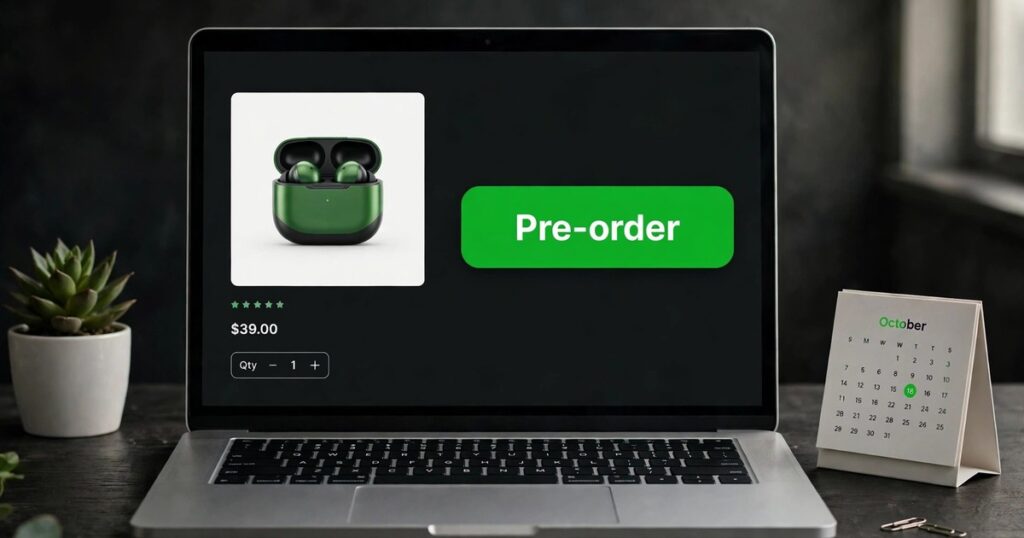
A pre-order button replaces the Add to Cart button on a product that is out of stock. The buyer clicks it, pays in full or leaves a deposit, and receives a clear message about when the item will ship.
The order enters Shopify like a normal order, but the store must hold it until stock arrives. That is why the ship date matters so much, and it is the core idea behind how to add a pre-order button to Shopify. Pre-orders work best for products with proven demand, such as a restock of a best seller or a limited run. If you are still finding your first winning product, read our guide on how to get your first sale on Shopify before you build a pre-order offer around an untested item.
How to add a pre-order button to Shopify: 7 smart steps
Follow these seven steps in order, and do not skip the testing step at the end, even if the setup looks simple. Each step builds on the last one.
Step 1: Decide between a pre-order app and the manual setup
When you learn how to add a pre-order button to Shopify, start by choosing your route. A pre-order app is the recommended choice for most stores, because it handles the button, the ship date, the payment mode, and the switch back to normal selling when stock returns. The manual setup only changes the button text, with no date, no deposit handling, and no auto switch back.
Step 2: Install a pre-order app from the App Store
Open the Shopify App Store from your admin and search for a pre-order app. Popular options include Pre-Order Now, Bold Pre-Order, Preorder Wolf, Amai PreOrder Manager, PreOrder Bear, and Notify Me! Restock and PreOrder. Check the live App Store listing for current pricing, pick the app that fits your store, install it, and let it place the button first, then adjust the wording after you see it on a live product page.
Step 3: Pick the products and variants to pre-sell
Open the app and select the products or variants you want to offer as pre-orders. Start with one or two products that already have demand, such as a best seller that sold out. Check each variant separately, because a shirt may be out of stock in medium but in stock in large, so only the medium variant should show the pre-order button. Good Shopify inventory management for beginners starts with this kind of variant-level care.
Step 4: Set the release or ship date buyers will see
Set the expected ship date for each pre-order product, and make sure the app shows it on the product page and at checkout. Use a date you can meet, and add a small buffer for supplier delays and shipping time. A clear date is the heart of how to add a pre-order button to Shopify well. Write it in plain words, such as Ships on December 15, 2026.
Step 5: Choose how buyers pay: full price, deposit, or pay later
Choose the payment mode in the app settings. Most pre-order apps offer three choices: full payment now, a deposit now with the balance due later, or no charge until fulfillment. Full payment now gives you cash flow, but it also creates the highest refund risk if the date slips. A deposit lowers the risk for the buyer while still showing real demand. Pick the mode that matches the wait time, and state the terms next to the button.
Step 6: Customize the button text and the pre-order message
Change the button text from Add to Cart to Pre-Order, or to a clearer phrase such as Pre-Order Now or Reserve Yours. Keep it short and honest. Add a short message under the button that repeats the ship date and the payment terms, such as Pre-order now. Ships on December 15, 2026. That message answers the two questions every pre-order buyer asks: when will it arrive, and when will I pay. If you want help shaping that page, our custom Shopify store design service can shape the layout and the message around your brand.
Step 7: Set an inventory cap, test checkout, and announce the pre-order
The last step in how to add a pre-order button to Shopify is the one most stores rush: set an inventory cap, test checkout, and only then announce the offer. Set the cap to match the units your supplier can deliver by the ship date, minus a small buffer for damaged stock. When the cap is reached, the app should turn the pre-order button off. Then test the full checkout yourself and confirm the ship date appears on the product page and at checkout. Note that pre-orders may not work with accelerated checkouts like Shop Pay or PayPal Express, so check compatibility before you go live. Only then announce the pre-order by email and on social media. For launch ideas, see our guide to Shopify upsells and bundles.
Pre-order app vs manual setup: which should you choose?
Once you know how to add a pre-order button to Shopify, the choice is between control and simplicity. A pre-order app gives you control over the button, the date, the payment, and the stock cap in one place.
| Method | Button shown | Ship date shown | Payment options | Best for |
|---|---|---|---|---|
| Pre-order app | Pre-Order button on out-of-stock items | Yes, on the product page and at checkout | Full payment, deposit, or pay later | Stores that run pre-orders often |
| Manual setup | Button text changed to Pre-Order in the theme | No, add the date by hand | Full payment only | A short test on one product |
| Only continue selling when out of stock | Add to Cart stays, with no pre-order wording | No date shown | Full payment only | No store, buyers will think it is in stock |
The verdict is clear: use a pre-order app for any real offer, use the manual setup only for a quick test, and never rely on the continue selling setting alone, because it hides the wait.
How do you set up pre-orders manually on Shopify?
If you want to know how to add a pre-order button to Shopify without an app, this is the manual route. In the Shopify admin, open the product page, open Inventory, and check Continue selling when out of stock.
Then change the button text to Pre-Order in your theme settings or theme code, and add the ship date and payment terms to the product description by hand. Turn the setting off when stock returns, and change the button back to Add to Cart. This works for one short run, but it does not scale.
How should buyers pay for a pre-order?
Payment choice is a key part of how to add a pre-order button to Shopify, and each mode fits a different wait. Full payment now is the simplest option.
It fits short waits and stores that need cash flow to pay the supplier before stock arrives. A deposit now with the balance later is the balanced option: the buyer pays part of the price to reserve the item, then pays the rest before shipping. It lowers the risk for the buyer and works well for high-priced items or long waits.
What mistakes cause pre-order refunds?
Most refunds come from skipping a step in how to add a pre-order button to Shopify, and the first mistake is hiding the ship date.
A buyer who expects fast shipping and then learns the item ships in six weeks will ask for a refund. Show the date on the product page, at checkout, and in the confirmation email. The second mistake is overselling, so set an inventory cap and stop taking pre-orders when the cap is reached. Our guide to Shopify order tracking pages can help buyers follow their order after they buy. The third mistake is going quiet after the sale, so send a short update when the stock ships, another when it arrives, and a final one with the tracking link. If the date slips, email buyers before the old date passes and offer a refund to anyone who cannot wait. The fourth mistake is offering pre-orders on too many products at once, so start with one or two products first. If you need a store setup that can handle pre-orders, bundles, and subscriptions, see our services page and our guide to how to sell subscriptions on Shopify.
Frequently asked questions
Does Shopify have a built-in pre-order button?
No, Shopify has no native pre-order button, so you need a pre-order app or a manual setup. An app is the better choice for most stores, because it shows the ship date, handles deposits, and switches the button back when stock returns.
Can I take pre-orders for out-of-stock products on Shopify?
Yes, you can take pre-orders for out-of-stock products by installing a pre-order app or by turning on the continue selling setting. The app route is safer, because it shows the ship date and the payment terms and stops taking orders when your cap is reached.
Should I charge full price or a deposit for a pre-order?
Charge in full for a short wait of one or two weeks, and take a deposit for a longer wait or a high-priced item. A deposit lowers the risk for the buyer while still proving demand, and it gives you cash flow without asking for the full price up front.
Do pre-orders work with Shop Pay and PayPal Express?
Pre-orders may not work with accelerated checkouts like Shop Pay or PayPal Express, so check compatibility in your app settings before you go live. Test the full checkout with the payment method your buyers use most, and warn buyers if a checkout option is not available.
What happens if a pre-order ship date changes?
Update the ship date on the product page right away, then email every buyer who already ordered with the new date. Offer a refund to anyone who cannot wait, and keep the message short and honest, because a fast update keeps trust even when the date slips.
Now you know how to add a pre-order button to Shopify: pick a pre-order app, set a date you can meet, cap the orders, test the checkout, and then announce it with confidence. Done well, pre-orders turn a sold-out product from a missed sale into a planned sale.
Sources: Brainspate pre-order guide; Gochyu pre-order guide; Notify Me pre-order guide; the Dropship Stair guides linked in this article.