
By the Dropship Stair team. Last reviewed: November 2026.
Key takeaways
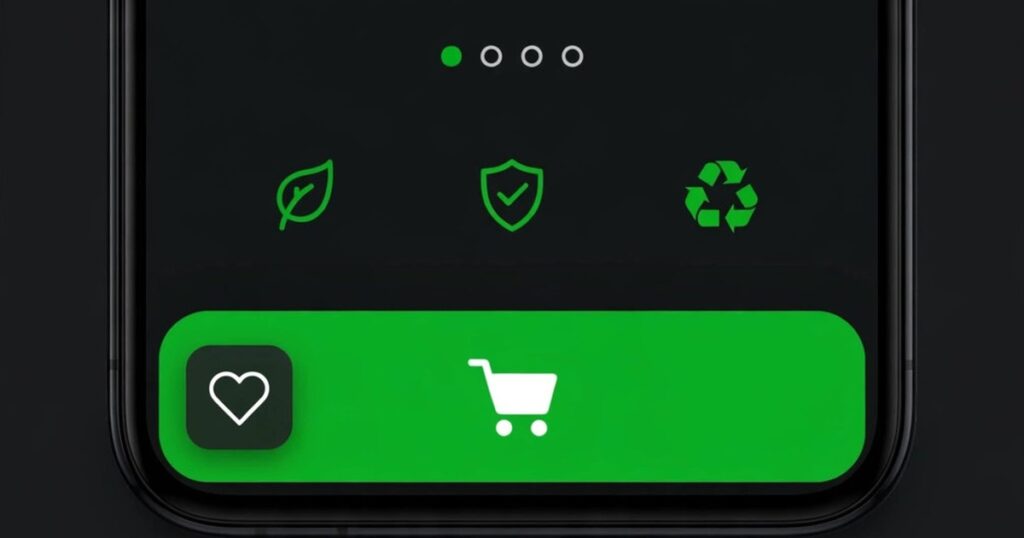
- A sticky add to cart button on Shopify is a buy button or bar that stays fixed on the screen, usually at the bottom, after the shopper scrolls past the main buy button.
- Check your theme for a built-in setting first, because it is the fastest and lightest way to add the bar.
- Show the bar only after the main buy button scrolls out of view, so it helps shoppers instead of crowding the top of the page.
- Test the bar on mobile and desktop, check every variant, and measure add to cart clicks before you call it a win.
How to add a sticky add to cart button to Shopify: check your theme for a built-in setting first, then use an app or code if your theme has none. Set the bar to appear only after the main buy button scrolls away.
What is a sticky add to cart button on Shopify?
A sticky add to cart button stays visible while a shopper scrolls a product page, so the buy action never leaves the screen. It sits at the bottom on mobile and shows the product name, price, and a buy button.
Shoppers read a lot before they buy. They scroll through photos, reviews, and shipping notes, and by the time they decide, the main buy button is far above them.
Learning how to add a sticky add to cart button to Shopify starts with that simple idea, but setup still matters. If your product pages need work first, start with our guide to product page copywriting for Shopify.
How to add a sticky add to cart button to Shopify in 7 steps
Follow these seven steps to learn how to add a sticky add to cart button to Shopify. Check the theme first, pick a method, then set the trigger, style the bar, and test it.
Step 1: Check your theme for a built-in sticky add to cart setting
Open your theme editor and a product template. Look in the product information section for a setting called sticky add to cart or sticky buy button. Many Dawn-based and paid themes include it. If you find it, turn it on, choose top or bottom placement, and save.
Step 2: Pick your method: theme, app, or code
The best method depends on your theme and your comfort with code. A theme setting is best when your theme has one. An app is best when your theme has none and you want a quick setup. Custom code is best when you want full control and you are happy to edit theme files.
Step 3: Duplicate your theme before touching code
Skip this step if you are using a theme setting or an app, because neither one edits theme code. If you plan to add code, duplicate your theme first. Go to Online Store, then Themes, open the actions menu on your live theme, and choose Duplicate. Work on the copy.
Step 4: Install and enable the bar, or add the snippet
If you chose an app, install it from the Shopify App Store and enable the bar on product pages. Zoorix Sticky Add To Cart Bar is one option with a free plan available, and Slide Cart is another. Set when the bar appears and pick a simple style, then save. If you chose code, add a snippet named sticky-add-to-cart and render it in the product section. Let the sticky button trigger the existing product form, not a second form, so variant and quantity choices keep working.
Step 5: Set the trigger so it appears only after the main button scrolls away
A sticky bar should not sit on the screen from the moment the page loads. It should appear only after the main buy button scrolls out of view, and that timing is a key part of how to add a sticky add to cart button to Shopify well. Look for a show on scroll option in the theme, or a trigger rule in the app. Test it by scrolling slowly and watching when it appears.
Step 6: Style it to match your brand and show price and variant
Match the bar to your store. Use your brand colors, your normal button style, and text your shoppers can read at a glance. Show the product price and the variant the shopper picked. Keep the text short: product name, price, and a clear Add to Cart button are enough. Check it on a real phone, as shown in our guide to mobile Shopify store optimization.
Step 7: Test on mobile and desktop, then measure add to cart clicks
Test the bar the way a shopper would use it. Open a product page on mobile and on desktop, scroll down, pick a variant, and add the product from the sticky bar. Check that the right variant lands in the cart. Then check long pages and pages with subscription options. That test is the last part of how to add a sticky add to cart button to Shopify, and after it, measure add to cart clicks against the weeks before.
Which method should you choose: theme, app, or code?
The right method fits your theme, your budget, and your skill level. A theme setting wins on speed, an app wins on features and setup time, and custom code wins on control.
Start with the theme check. Move to an app only if your theme has no built-in option. Move to custom code only if you need a look that neither the theme nor an app can give you. That order is the core of how to add a sticky add to cart button to Shopify without wasting time or money.
| Method | Cost | Skill needed | Page speed impact | Best for |
|---|---|---|---|---|
| Theme built-in setting | Included with your theme | None, use the theme editor | Lowest, no extra app code | Stores whose theme already has the setting |
| Third-party app | Free plan available on some apps, paid plans on others | None, install and set options | Higher, apps add JavaScript to product pages | Stores that want a quick setup with style controls |
| Custom code | Free if you do it, paid if you hire a developer | Theme code and testing | Low if the code stays light | Stores that need full control over look and behavior |
For most stores, the theme setting is the best first choice, and an app is the best fallback. If page speed is a worry, read our guide to Shopify store speed optimization first.
When does a sticky add to cart button help, and when does it hurt?
A sticky bar helps most on long product pages, where the main buy button scrolls away before the shopper decides. It also helps on mobile, where scrolling back to the top takes real effort and shoppers may give up instead.
It helps less on short product pages, where the main button is always close by, and on pages where the shopper still needs to pick a size, color, or plan. In those cases, the bar can add the wrong variant or rush a choice that needed care.
The test is simple. If shoppers read a lot before they buy, the bar is likely to help. If they decide fast, the bar may add little. When you learn how to add a sticky add to cart button to Shopify, measure the result on your own store. Pair it with a clear checkout, as shown in our Shopify checkout optimization guide.
What mistakes should you avoid with a sticky add to cart button?
The most common mistakes are showing the bar too early, adding the wrong variant to the cart, and adding a heavy app without checking page speed.
Showing the bar too early covers the product title and photos before the shopper has read anything. Adding the wrong variant happens when the bar uses its own form instead of the main product form. Test speed before and after you install any app.
Other mistakes are easy to miss. A bar that looks fine on desktop can cover the whole screen on mobile. A bar with a low contrast button can blend into the page and get ignored. Check each of these before you publish, and again after every theme update. If you want the bar to sell more, pair it with a real offer, such as a bundle, as shown in our Shopify upsells and bundles guide.
Frequently asked questions
How to add a sticky add to cart button to Shopify without an app?
Check your theme settings first, because many Dawn-based and paid themes include a built-in sticky bar you can turn on with no code. Open the product template, look in the product information section, enable the setting, choose top or bottom placement, and save.
Does a sticky add to cart button slow down my Shopify store?
It can, mainly when an app adds extra JavaScript to product pages. A built-in theme setting usually adds the least load, while light custom code sits in the middle. Keep the bar simple, test page speed before and after, and remove any app that slows the page.
Should the sticky bar appear at the top or the bottom?
Bottom placement works best on stores, and it works best on mobile, where thumbs reach the bottom with ease. Top placement can work if your header stays out of the way. Pick one spot, keep it the same on every page, and check that it never covers details.
Will a sticky add to cart button increase my sales?
It may help, because it keeps the buy button in view while shoppers read reviews and details, but it does not guarantee higher sales. Measure add to cart clicks and orders before and after you add it. If the numbers do not move, change the placement.
What should I do if the sticky bar does not show the right variant?
Check that the bar reads the variant picked on the product form, because a second form can add the wrong size or color to the cart. The safe pattern is a bar that triggers the existing form, so variant, quantity, and subscription choices stay in sync. Test every variant.
Learning how to add a sticky add to cart button to Shopify comes down to a simple order: check the theme first, pick the lightest method that does the job, show the bar only after the main button scrolls away, and test it on mobile. If you want help building it, see our services or our custom Shopify store design page.
Sources: F22 Labs guide, OmniThemes guide, ThemeStackGuide guide.