
By the Dropship Stair team. Last reviewed: November 2026.
Key takeaways
- A mega menu on Shopify is a wide, multi-column dropdown in the header that shows several groups of links at once, so shoppers can see a full category at a glance instead of opening one narrow list at a time.
- Build the menu structure in Online Store > Navigation first, because the theme only controls how that structure looks, not which links it holds.
- Most modern Online Store 2.0 themes include a mega menu layout, while older themes may need an app or custom code to add one.
- Test the menu on desktop and on a phone, and keep the top level to five to seven items so shoppers can scan it fast.
How to add a mega menu to Shopify: build a three level menu in Online Store > Navigation, turn on the mega menu layout in your theme header, and match the trigger name to the menu item. Test it on desktop and on a phone.
What is a mega menu on Shopify?
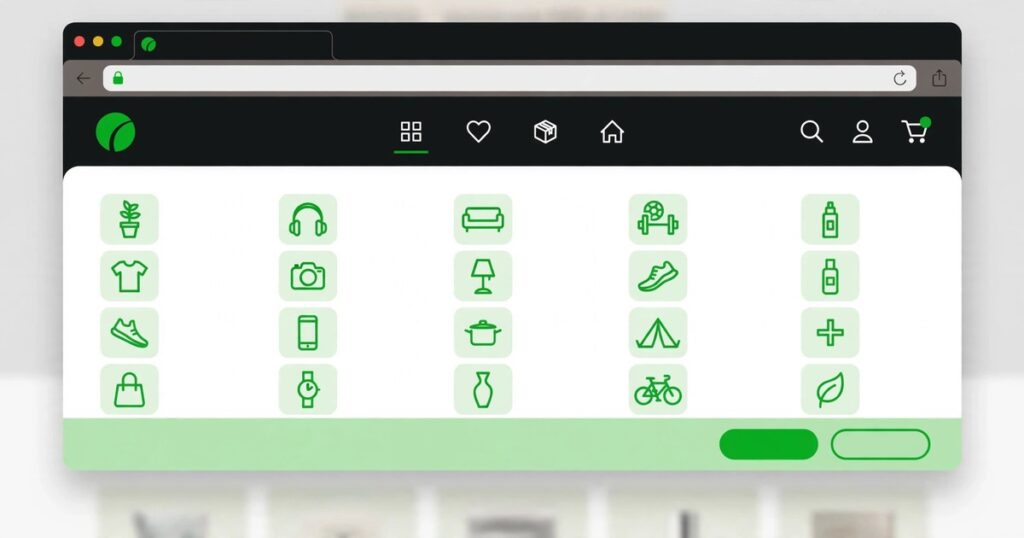
A mega menu is a wide dropdown panel that opens from a header link and shows several columns of links, images, or a promo block at once. It replaces a long single column list with a map of a category.
A shopper who hovers over Shop can see New Arrivals, Best Sellers, and every product group in one panel, and find the right page fast.
Learning how to add a mega menu to Shopify starts with this split: Navigation holds the links, and the theme holds the look. If you build a neat menu in Navigation but your theme has no mega menu layout, you will still see a plain dropdown.
How to add a mega menu to Shopify in 7 steps?
Follow these seven steps in order, and check the result after each one. The first two steps build the menu, the next three turn on the layout, and the last two polish it and test it.
Step 1: Plan your groups and keep top-level items to five to seven
Before you learn how to add a mega menu to Shopify, start on paper, not in Shopify. List the top-level items your header needs, such as Shop, Collections, Sale, About, and Contact, and aim for five to seven at most. Under each one, list two to four groups, with three to six links in each group. For a clothing store, Shop might hold By Product, with T-Shirts, Hoodies, and Dresses under it. Use short labels shoppers already use. Our guide to Shopify store navigation best practices shows how to group links so shoppers find products fast.
Step 2: Build the three-level menu in Online Store > Navigation
Go to Online Store > Navigation, open your main menu, and build three levels. The top-level item is the trigger, such as Shop. The second level holds the groups, such as By Product and By Collection. The third level holds the links under each group, such as T-Shirts and Hoodies. Drag each item into place, then save the menu. Check every link for draft products or old URLs. If you need a new collection, build it first with our guide to how to create a Shopify collection, then add the link.
Step 3: Check whether your theme supports mega menus
Open Online Store > Themes and note which theme is live. Many modern Online Store 2.0 themes have built-in mega menu support, including Dawn, Prestige, Impulse, Eurus, and Warehouse. If you use one of these themes, you can often turn on the layout with no code and no app. If your theme has no such setting, a mega menu app adds the layout without code, while custom Liquid code adds it with full control but needs a developer.
Step 4: Enable the mega menu in the theme editor header settings
Go to Online Store > Themes > Customize, then open the Header section. Look for a mega menu block, a menu setting, or a Desktop menu type option. Add a mega menu block if your theme uses blocks, or set the Desktop menu type to Mega menu if your theme uses that option. Save the change, then open the live preview and hover over the top-level item to see the panel open. The exact place to learn how to add a mega menu to Shopify in the editor varies, because the names differ by theme.
Step 5: Match the trigger name to the menu item exactly
This step causes more failed mega menus than any other. The trigger in the theme setting must match the top-level menu item name in Navigation exactly, including case. If Navigation says Shop and the theme trigger says shop, the panel may not open. If Navigation says Shop All and the trigger says Shop, the same problem appears. If you rename a menu item in Navigation, update the trigger in the theme editor to match, then save both changes and test again. Keep the names in sync.
Step 6: Add images or a promo block to the menu
A plain menu works, but a small image or promo block helps shoppers notice the group that matters most. Add one featured image, such as a photo of the new collection, or a promo block for a sale or a featured product, with one short line of text and a clear link. Do not fill every column with images. One image per panel is enough for most stores, and two is the most you should use. Large images slow the menu, and they distract shoppers if they compete with the links. See our guide to Shopify homepage design best practices for the same rule.
Step 7: Test on desktop and mobile, then fix anything that overlaps or hides
To finish learning how to add a mega menu to Shopify, test the menu on a desktop screen, a laptop screen, and a phone. On desktop, hover over each top-level item and check that the panel opens fully and that no links overlap. On mobile, themes usually turn the mega menu into an accordion or a stacked list, so test it on a real phone, not only in the editor preview. Tap each group to open it, and check that the links are easy to tap. For more mobile checks, read our guide to mobile Shopify store optimization.
When does a mega menu help, and when does it hurt?
A mega menu helps when a store has many products in clear groups. It shows the full catalog in one panel, cuts the clicks to a product page, and helps new shoppers learn what the store sells.
Learning how to add a mega menu to Shopify helps most when the catalog is large, but it hurts when a store has few products or vague groups. A store with ten products does not need a wide panel, because a simple dropdown does the same job with less work. A store with vague group names also suffers, because shoppers cannot tell which column holds the item they want. If the header is already crowded, use a mega menu on one or two items only.
Should you use a theme, an app, or custom code?
The theme is the best starting point for most stores. If your theme has a mega menu layout, use it first, because it is already part of the theme, it needs no extra app, and it usually loads fast.
Mega menu apps such as Meteor Mega Menu and Buddha Mega Menu add drag and drop editors, images, icons, and templates with no code. They suit owners who want more control than the theme offers, and who do not want to hire a developer. Custom code suits stores with a design that no theme or app can match, such as a panel with a unique layout or a special promo area. It needs a Liquid developer and testing after theme updates. For Dawn users, see our guide to Shopify Dawn theme customization first.
| Method | Cost | Skill needed | Control | Best for |
|---|---|---|---|---|
| Theme built-in mega menu | Included with the theme | Low, no code needed | Good, limited to theme options | Most stores using a modern theme |
| Mega menu app | App fee, varies by app | Low, drag and drop editor | High, images, icons, and templates | Stores that need more layout options |
| Custom code | Developer time | High, Liquid and theme code | Full, any layout you can build | Stores with a unique design need |
Start with the theme, move to an app only if the theme cannot do what you need, and use custom code only when the design truly needs it.
What mistakes slow a mega menu down?
The most common mistakes are easy to avoid once you know them. Too many items, vague labels, and large images top the list, and each one slows shoppers down.
Too many links is the first mistake. A panel with thirty links looks complete, but shoppers read only the first few in each column, so keep each group short and move the rest to collection pages. Vague labels are the second mistake: names such as Stuff, More, and Misc tell shoppers nothing, so use the words shoppers search for, such as T-Shirts, Hoodies, and Sale. Large images are the third mistake, because a full size photo adds load time for a link shoppers may never open, so compress every menu image and keep it small.
If you want help with how to add a mega menu to Shopify, Dropship Stair builds Shopify stores with clear navigation from the start. See our services and our custom Shopify store design page for help.
Frequently asked questions
How to add a mega menu to Shopify on Dawn?
Build a three level menu in Online Store, then open Online Store, Themes, Customize, and set the header menu type to Mega menu in Dawn. Match the trigger name to the top level menu item, save the theme, and test the panel on desktop and on a phone.
Do I need an app to add a mega menu to Shopify?
No, you do not need an app if your theme has a built in mega menu layout. Many modern themes include one, so check the header settings first. Use an app only when your theme lacks the layout or when you want drag and drop editing, icons, and templates.
Why is my Shopify mega menu not showing?
Check the trigger name first, because it must match the top level menu item exactly, including case. Then check that the theme menu type is set to Mega menu and that the menu is saved in Navigation. Clear the cache and test again after each fix.
Can I add images to a Shopify mega menu?
Yes, most themes and mega menu apps let you add an image or a promo block to the panel. Use one small, sharp image per panel, link it to a collection or a product, and keep the text short so the links stay easy to read.
Does a mega menu work on mobile Shopify stores?
Yes, most themes turn the mega menu into an accordion or a stacked list on mobile. Test it on a real phone, tap each group to open it, and check that every link is easy to tap and that no image covers the links.
How to add a mega menu to Shopify comes down to a simple order: plan the groups, build the menu in Navigation, turn on the layout in your theme, match the trigger name, add one image or promo block, and test on desktop and mobile. Keep the panel short and clear, and shoppers will find products faster.
Sources: Brainspate guide to creating a mega menu in Shopify; Maestrooo mega menu support article; Tenten guide to mega menu Shopify navigation.