
By the Dropship Stair team. Last reviewed: November 2026.
Key takeaways
- How to sell on Instagram with Shopify means connecting your store to Meta so followers can tap a product tag and finish the purchase on your website.
- Start with the free Facebook and Instagram sales channel in Shopify, which syncs your products to a Meta catalog and keeps prices and stock in step.
- Tag products in posts, Reels, and stories, but keep the feed useful first: show the product in real use and save the hard sell for a few posts a week.
- Track what Instagram brings in with UTM links and channel-specific discount codes, so you can see which posts earn sales and which only earn likes.
How to sell on Instagram with Shopify starts with the Facebook and Instagram sales channel, which syncs your products to Meta and lets you tag them in posts and stories. After approval, followers tap a tag and finish the purchase on your store.
What do you need before you can sell on Instagram with Shopify?
You need five things in place before Meta will let you tag products: a Shopify store that is live and not password protected, an Instagram professional account, a Facebook Page for the business, a product catalog in Meta Commerce Manager, and products that follow Meta commerce policies. The Facebook and Instagram sales channel in Shopify handles the catalog part for you.
Instagram Shopping only covers physical products. Digital downloads, services, and subscriptions are not eligible for product tags, so a store that sells only those will need a different route, such as a link in bio that sends people to the store. Your products also have to follow Meta commerce policies, which means honest listings, real prices, and no banned or restricted items.
Your store also has to look like a real business. Shopify checks that your store is not in private mode and that you have a valid sender email set, and Meta looks for an established presence with accurate business information. A store with a finished homepage, clear shipping and returns pages, and a working contact page passes these checks far more easily than a half-built store. If you are still setting up, our Shopify store launch checklist walks through every check in one pass.
How do you connect Shopify to Instagram?
Connecting Shopify to Instagram runs through three places: the sales channel in your Shopify admin, Meta Commerce Manager, and the Instagram app. Start in your Shopify admin, open Sales channels, and add Facebook and Instagram. The channel is built by Meta and is free to install, and it is the piece that syncs your products to a Meta catalog automatically.
During setup you will connect your Facebook account, pick the right Facebook Page and ad account, and choose which products to sync. Shopify then creates or updates your catalog in Commerce Manager, and changes you make in Shopify, such as a price change or a product going out of stock, flow through to the catalog. Keep your catalog tidy: only sync products you actually want to sell on Instagram, with clear titles and at least one good image each.
Next, open the Instagram app, go to your professional account settings, and finish the shopping setup. You will link your catalog, confirm your domain, and submit your shop for review. Meta reviews your account, your catalog, and your business information together. If anything is missing, the review notice will usually say what to fix, so read it carefully and fix the exact point it names instead of resubmitting the same setup and hoping.
Once you are approved, turn on product tagging in the Instagram app, and every product in your synced catalog becomes available to tag.
How do you tag products in posts, Reels, and stories?
Tagging is simple once the setup is done. When you create a photo post, tap to tag products, pick the items from your catalog, and place each tag on the product in the image. You can tag up to 20 products in one photo post, and up to 5 products in a single story sticker. Reels support product tags too, and they are worth using.
Place tags where the product actually is in the image. A tag floating over empty space confuses people and gets ignored, while a tag sitting on the item it names gets tapped. One or two tags per post is usually enough. A post with ten tags looks like a catalog page, not a post, and people scroll past catalog pages.
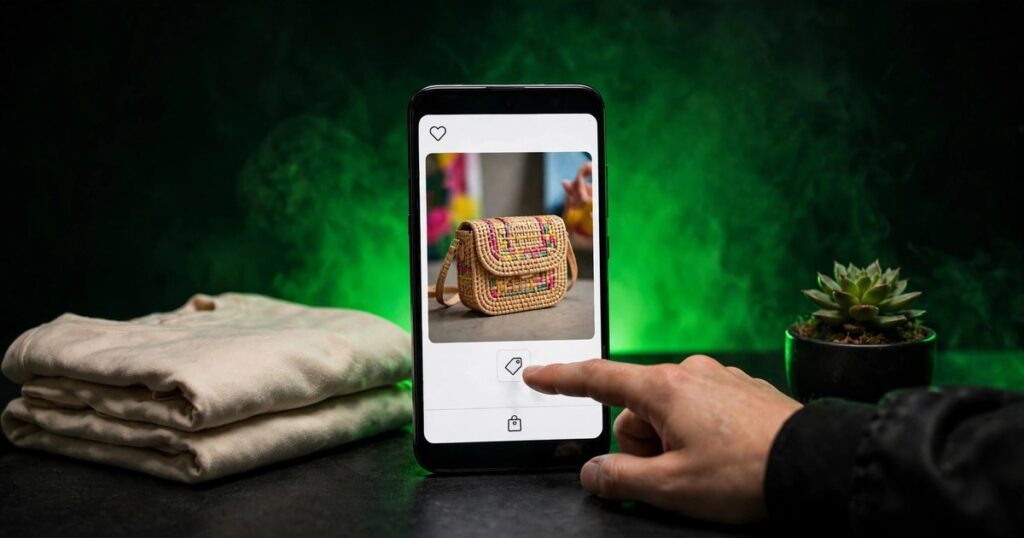
Here is the part most older guides get wrong: since September 2025, a tagged product does not sell inside Instagram. When a follower taps a tag, they see the product and then go to your Shopify store to complete the purchase. That means your product page does the selling, not Instagram. Our Shopify conversion rate guide covers the fixes that matter most on product pages, and our mobile optimization guide helps you check the page on a phone, which is where nearly every Instagram visitor will land.
What should you post to turn followers into buyers?
Post the product in real use first and the price second. A photo of a bag on a plain background tells people what it is; a short clip of someone packing it for a trip tells them why they might want it. People buy the result, not the object, so show the result: the outfit finished, the desk organized, the gift opened.
Mix four kinds of posts across the week. First, product in use: short Reels and carousels that show what the item does. Second, behind the scenes: packing orders, choosing materials, or fixing a problem,. Third, answers: reply to a common customer question in a Reel or a story, then tag the product that solves it. Fourth, social proof: repost a real customer photo or message with permission, and tag the product in it. Our social proof guide for Shopify stores explains how to collect and use customer photos the right way.
Reply to comments and direct messages quickly, and treat them as sales conversations. A person who asks about sizing or shipping in a comment is close to buying, and a fast, helpful answer can close the sale. If the same question keeps coming up, turn the answer into a post and tag the product, so the next person finds it without asking.
How do you measure Instagram sales in Shopify?
Instagram will not tell you the full story on its own, so set up your own tracking before you judge the channel. Add UTM links to your bio link and to the links you share in stories, so Shopify and your analytics can show which visits came from Instagram and what those visitors did.
Give Instagram its own discount code, such as a small first-order offer that only appears on your profile or in a story. When that code is used at checkout, you know the sale came from Instagram even if the buyer arrived days later.
Check three numbers each week: profile visits and taps from Instagram, sessions from Instagram in Shopify, and orders that used your Instagram code or arrived through a tagged link. If taps are high but sessions are low, check your bio link and page speed. If sessions are high but orders are low, the offer or the product page needs work, not more posts. See our Shopify analytics guide for beginners if you are new to reading store data.
What mistakes should you avoid when you sell on Instagram with Shopify?
The most common mistake is tagging everything. A feed where every post is a product tag trains followers to scroll past, and it buries the posts that actually teach or entertain. Tag the product when the post is about the product, and leave the tag off when the post is a story, a joke, or a behind-the-scenes moment.
The second mistake is sending Instagram traffic to a store that is not ready. A product page with one blurry photo, no shipping information, and a checkout that hides the full cost until the last step will waste every tap Instagram sends. Fix the product page before you spend time growing the channel, because the traffic is only as good as the page it lands on.
The third mistake is ignoring the catalog. Prices change, products sell out, and old items linger in the catalog. Check your catalog each month, remove products you no longer sell, and fix any items Meta flags for missing images or policy problems.
| Way to sell | How the buyer pays | Cost | Best for |
|---|---|---|---|
| Product tags in posts and Reels | On your Shopify store | Free, plus your time | Daily discovery from followers |
| Instagram Shop on your profile | On your Shopify store | Free, plus your time | Visitors browsing your whole range |
| Link in bio and story links | On your Shopify store | Free, plus your time | Launches, sales, and single offers |
| Instagram ads with product tags | On your Shopify store | Paid, set your own budget | Reaching buyers who do not follow you yet |
| Direct messages | On your Shopify store | Free, plus your time | Answering questions that close a sale |
Start with product tags and a tidy profile shop, add a bio link for each launch, and only pay for ads once organic tags already bring sales.
Frequently asked questions
Do I need a Facebook Page to sell on Instagram with Shopify?
Yes, you need a published Facebook Page connected to your business, because the product catalog lives in Meta Commerce Manager and the sales channel links through it. The Page also holds your shop settings and review status, so set it up first and keep its details matching your store.
How long does Instagram Shopping approval take?
Meta says the review of your commerce account can take up to 4 weeks, though many stores hear back sooner. The wait depends on your account history, your catalog quality, and whether your store information is complete. Use the waiting time to improve product photos and plan your tagged posts.
Can customers buy inside Instagram, or do they go to my store?
Customers go to your store to buy. Since September 2025, Instagram and Facebook Shops use website checkout, so a tap on a product tag opens the product and then sends the shopper to your Shopify checkout. That makes your product page and checkout speed part of the sale.
How many products can I tag in one Instagram post?
You can tag up to 20 products in one photo post and up to 5 products in a story sticker. Tagging fewer products usually works better, because one or two clear tags tell the viewer what to look at, while a post covered in tags reads like a catalog page.
Do I need to pay Meta to sell on Instagram with Shopify?
No, product tagging and the Shop on your profile are free, and the Facebook and Instagram sales channel is free to install. You only pay if you choose to run Instagram ads. Your real cost is time: shooting photos, posting, replying to messages, and keeping the catalog accurate.
That is how to sell on Instagram with Shopify: connect the channel, get approved, tag with care, and measure what actually sells. Dropship Stair builds Shopify stores made to turn social traffic into orders. See the design work in our portfolio or reach the team through contact us to talk through what your store needs next.
Sources: Shopify Help Center, Facebook and Instagram by Meta, checked November 2026; Meta Business Help Center, commerce eligibility and Shops checkout, checked November 2026; the Dropship Stair guides linked in this article.