
By the Dropship Stair team. Last reviewed: November 2026.
Key takeaways
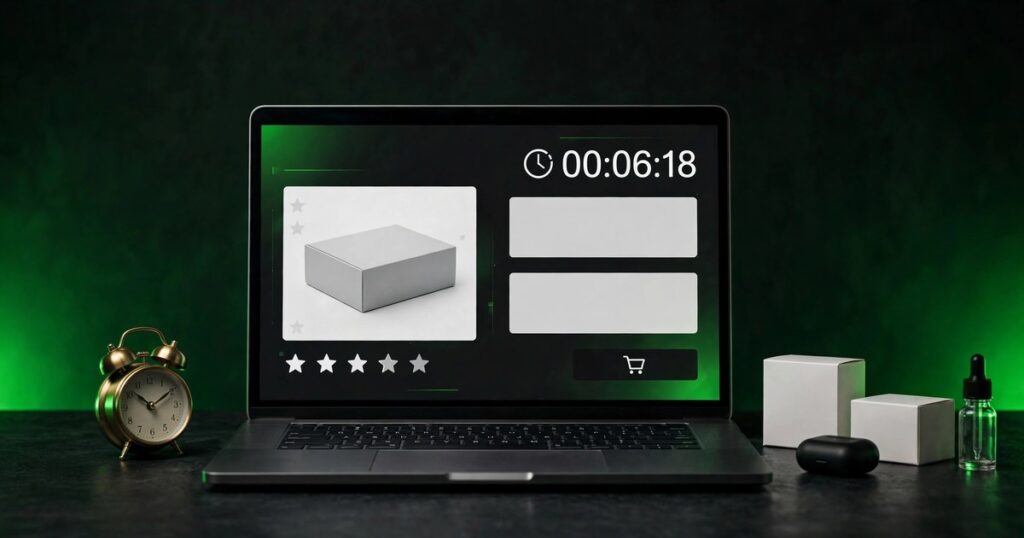
- A Shopify countdown timer is a live clock on a product page, homepage, or announcement bar that counts down to one fixed end date.
- Shopify default themes have no built-in countdown timer block, so you add one with an app, a Custom Liquid block, or a premium theme with a countdown section.
- Place the timer where the buying decision happens, usually above the Add to Cart button, and tie it to a real offer and end date.
- A timer that restarts forever or stays up after the sale ends trains shoppers to ignore it, so stop it at zero and take it down.
To learn how to add a countdown timer to Shopify, pick one route: an app, a Custom Liquid block, or a premium theme. Place the timer near the buy button, tie it to an end date and offer, remove it when the sale ends.
What is a countdown timer on Shopify?
A countdown timer on Shopify is a live clock that shows days, hours, minutes, and seconds left before a sale or launch ends. It gives a shopper a clear reason to decide now instead of leaving and coming back later, when the offer may be gone.
A timer is not a trick. It is a plain display of a deadline you already set. If the sale has no end date, the timer has nothing honest to count down to. Pick the end date first, set the offer, and then add the clock.
How to add a countdown timer to Shopify with an app
An app is the fastest way to add a countdown timer to Shopify if you want setup without code. Open the Shopify App Store, search for a countdown timer app, and look at apps such as Hextom Countdown Timer Bar or Essential Countdown Timer Bar. Install the app, set the end date, pages, and design, then check it on a live product page before the sale.
Apps suit owners who want per product timers, ready made styles, and controls without code. Many apps offer a free plan, and paid plans may add more views, more timers, or extra features. Read the plan limits before you install.
How to add a countdown timer to Shopify with Custom Liquid
The Custom Liquid route is a smart way to learn how to add a countdown timer to Shopify without an app and without editing theme files. From your Shopify admin, go to Online Store, then Themes, then Customize to open the theme editor. Use the page dropdown at the top to open Products, then Default product. In the left sidebar, under Product information, click Add block and select Custom Liquid.
Paste your countdown code into the Custom Liquid block, set the end date, and click Save. The block sits inside the theme editor, so you can move, hide, or remove it without opening theme code. Place it above the Add to Cart button, or in the announcement bar for a store wide sale.
This route gives you full control over the design and the end date, and it adds no monthly app fee. A code based timer runs in the visitor browser, so it uses the visitor local clock. Test it on a phone, and confirm it stops or shows an ended message at zero. If you edit theme code directly instead, duplicate the theme first.
How to add a countdown timer to Shopify with a premium theme
Some premium themes include a countdown timer section in the theme editor, ready to set up without an app or extra code. In the Shopify Theme Store, filter paid themes by the countdown timer feature. After you install a theme, find the countdown section, drag it to the page template, set the end date and text, then save.
This route fits a store that already plans a redesign, or already owns a premium theme with a countdown section. Premium themes range from $100 to $350-plus as a one-time fee, based on the Jotform guide checked in November 2026, so buying a whole theme for one timer alone is a big spend. If a timer is the only feature you need, an app or a Custom Liquid block is cheaper.
| Method | Cost | Skill needed | Best for |
|---|---|---|---|
| Shopify app | Free plan on many apps, paid plans may add cost | None, setup in the app dashboard | Per product timers and fast setup without code |
| Custom Liquid block | Free, no app fee | Basic comfort with pasting code and setting a date | One sale with one end date and full design control |
| Premium theme | One-time theme fee, often $100 to $350-plus | None, setup in the theme editor | A store already planning a redesign with a built-in timer |
When you learn how to add a countdown timer to Shopify, pick the route that fits your budget and comfort with code. An app wins on speed, Custom Liquid wins on cost and control, and a premium theme wins as part of a larger redesign.
7 smart tips to make your countdown timer work
The setup takes minutes. These seven tips show how to add a countdown timer to Shopify well, and they decide whether a timer lifts sales or just adds noise. Use them as a checklist before every sale.
Tip 1: Pick one real deadline and stick to it
Choose a single end date and time, and use that same date in the timer, the discount code, and the sale banner. A fixed end date means every shopper sees the same deadline, and a shopper who returns tomorrow sees less time left. A timer that resets to the same minutes on every visit is not a deadline, it is a loop. That is the first rule when you learn how to add a countdown timer to Shopify.
Tip 2: Match the timer to a real offer
After you learn how to add a countdown timer to Shopify, remember that a clock alone does not sell. Pair it with a clear offer, such as a percent off code, free shipping over a set amount, or a bundle deal. The offer is the reason to buy, and the timer is the reason to buy now. Our guide on how to add a discount code to Shopify shows how to set up a code with an end date that matches your timer.
Tip 3: Place it above the Add to Cart button
When you learn how to add a countdown timer to Shopify, put the timer where the buying decision happens. On a product page, that spot is usually just above the Add to Cart button, close to the price and the buy options. A timer in the announcement bar works for a store wide sale, but it is easy to miss once a shopper scrolls down. One clear timer near the buy button beats two timers on the same page.
Tip 4: Keep the design on brand and easy to read
Once you know how to add a countdown timer to Shopify, match the timer colors and font to your store, and keep the numbers large enough to read at a glance. Use a short label such as Sale ends in, and show days, hours, minutes, and seconds in that order. Skip flashing colors and extra icons that pull the eye from the price and buy button.
Tip 5: Test the timer on mobile first
Most shoppers will see your timer on a phone, so open the product page on a real phone before the sale starts. Check that the numbers fit, the label is not cut off, and the timer does not push the Add to Cart button below the fold. Fix mobile first, then check desktop.
Tip 6: Stop the timer at zero and take it down
Decide what happens at zero before the sale starts. The timer should stop, show a short ended message, or hide itself when the deadline passes. Then remove the timer and end the offer on the same day. A clock stuck at zero tells shoppers the first deadline was not real. Plan the end date with our guide to holiday sales for Shopify stores.
Tip 7: Measure it and change one thing at a time
After you learn how to add a countdown timer to Shopify, watch what the timer does in Shopify analytics. Compare the conversion rate and order count during the sale with a similar period without a timer, and note the placement, offer, and sale length. Change one thing next time, and keep the rest the same. Our guide on how to increase average order value on Shopify has more ways to raise each order.
How do you know if your countdown timer is working?
Knowing how to add a countdown timer to Shopify is only the start. A timer works when more shoppers finish the purchase before the deadline, not just when more look at the clock. Check sessions, add to cart rate, and completed orders. If add to cart rises but orders stay flat, the offer or checkout needs work, not the timer.
Also watch cart recovery. Our guide to abandoned cart recovery for Shopify shows how to follow up while the offer is still live. Send the reminder before the deadline, not after.
Frequently asked questions
How do I add a countdown timer to Shopify without an app?
Use a Custom Liquid block in the theme editor to add a countdown timer to Shopify without an app. Go to Online Store, then Themes, then Customize, open the product template, add a Custom Liquid block, paste your timer code, set the end date, and save.
Where is the best place for a Shopify countdown timer?
Place the timer just above the Add to Cart button on a product page, close to the price and buy options. For a store wide sale, use the announcement bar as well, so shoppers see the deadline on every page. Keep one timer per page, so the message stays clear.
Do Shopify themes have a built-in countdown timer?
Shopify default themes have no built-in countdown timer block, so you need an app, a Custom Liquid block, or a premium theme. Some premium themes include a countdown section in the theme editor. Check the theme features before you buy, so you know the timer is included.
Can a countdown timer hurt my Shopify store?
Yes, a countdown timer can hurt trust when it restarts forever, stays up after the sale ends, or counts down to no real offer. Shoppers learn to ignore a fake deadline, and a timer that never ends makes the next real sale less believable.
How long should a Shopify countdown timer run?
Keep a countdown timer short, often a few days for a flash sale or one to two weeks for a holiday event. A short window feels urgent and is easy to manage. A timer that runs for many weeks loses its pull, so set a tight end date.
Learning how to add a countdown timer to Shopify is the easy part. The real work is picking a real deadline, pairing it with an offer worth acting on, and placing the clock where the decision happens. Start with one product and one timer, test it on mobile, and remove it at zero.
Sources: Jotform guide on how to add a countdown timer to Shopify, checked November 2026; Popupsmart guide on how to add a countdown timer to Shopify, checked November 2026; Shopify Customize guide on how to add a countdown timer to a Shopify store, checked November 2026; the Dropship Stair guides linked in this article.