
By the Dropship Stair team. Last reviewed: November 2026.
Key takeaways
- A size guide on Shopify is a measurement chart that tells shoppers which size fits their body, so they can order with confidence instead of guessing.
- You can add one with a simple Size Chart page, a size chart app, product metafields, or custom theme code.
- Measure each garment laid flat, chest, waist, hips, length, and inseam, and show the numbers in inches and centimeters.
- Link the guide beside the size picker. That is where shoppers decide, and a footer link is the same as no link.
Our verdict first: learning how to add a size guide to shopify is simple, but only if the numbers are honest. Create a Size Chart page or add a size chart app, add measurements in inches and centimeters, and link it beside the size picker.
What is a size guide on Shopify?
A size guide is a measurement chart that shows shoppers the real size of a garment before they buy, and our blunt view is that it belongs on the product page, not in a footer. On Shopify, it usually lives on a Size Chart page, in a popup beside the size picker, or in a tab on the product page. The shopper picks a size, checks the chest, waist, or length for that size, and orders with confidence instead of guessing.
Fashion stores feel the lack of a guide first, because a wrong size is the most common reason a clothing order comes back. A clear chart answers the size question before the shopper reaches checkout, which also keeps the checkout flow short and calm. If you sell apparel, look at how the best Shopify fashion stores present sizing, because the clearest stores treat the guide as part of the product page, not as an afterthought.
How to add a size guide to Shopify: the 7 steps
Follow these seven steps in order. Our warning first: the first two are measurement work, and they decide whether the chart you publish is useful or misleading. Skip them and the rest is decoration.
Step 1: Measure every product laid flat
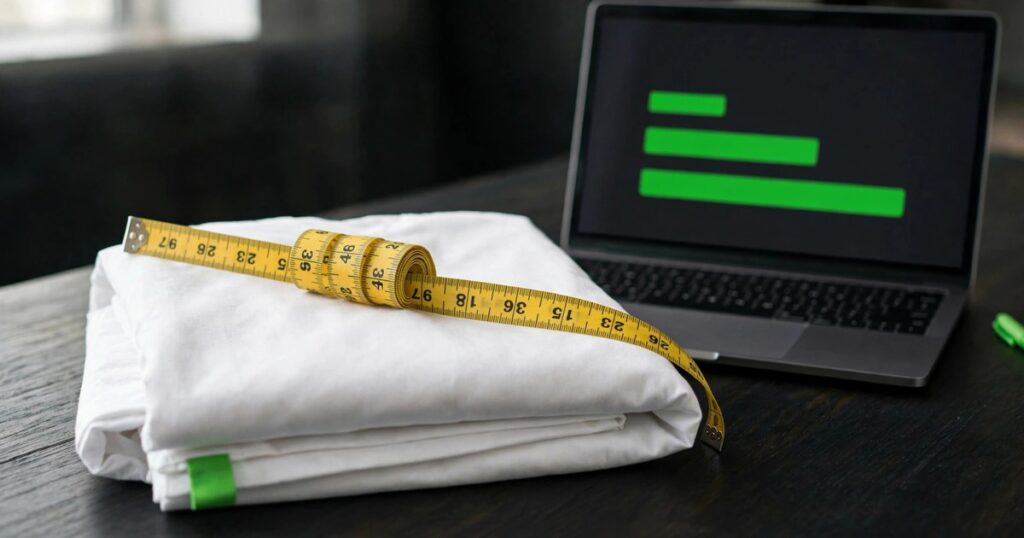
Measure the real garment. That is the step most stores skip, and it is the one that matters most. Take the garment, lay it flat on a table, and measure it with a soft tape. Record the chest, waist, hips, length, and inseam, and add sleeve length or shoulder width where the product needs it. Measure the actual product, not the size label, because two brands can cut a medium very differently. Write the numbers down in a spreadsheet with one row per size, so the chart you build later comes from real numbers, not from a supplier listing you never checked.
Step 2: Build one chart per fit
One chart should cover every product that shares the same fit. Every slim shirt in your store can share one chart, and every regular-fit shirt can share another. Do not force a dress, a shirt, and a pair of jeans onto one chart, because the measurements that matter change with the product type. Give each chart a clear name, such as Slim Fit Shirts or Straight Leg Jeans, so you always know which products it belongs to. Our rule: one chart per fit, no exceptions.
Step 3: Create a Size Chart page in Shopify
Open your Shopify admin, go to Online Store, then Pages, and click Add page. Title the page Size Chart or Size Guide, then add your measurement table with one column per size and one row per measurement. Set Visibility to Visible and save the page. This page costs nothing extra, it works on every Shopify plan, and it is the fastest way to get a guide live. Keep the table simple, with plain numbers and no extra decoration, so shoppers can read it on a phone. We would start here every time.
Step 4: Link the chart beside the size picker
A chart that shoppers cannot find is the same as no chart. That is our blunt verdict on placement, so do not bury it. Add a link to your Size Chart page right beside the size picker on the product page, so the shopper sees it at the exact moment they choose a size. Where your theme supports it, show the chart as a popup or a tab, so the shopper never leaves the product page. Check the link on a phone as well as on a desktop, because most shoppers will open it on a phone, and a link that is hard to tap will simply be ignored.
Step 5: Add a size chart app when sizes change by product type
When one chart cannot cover your catalog, a size chart app from the Shopify App Store can show a different chart for each product type. Install the app, connect it to your products, and set which chart belongs to which product or collection. Apps can also show the chart as a popup and update every chart from one place. Pick an app that reads your existing product data, and test it on two or three products before you roll it out across the store. We would not roll it out storewide untested.
Step 6: Use metafields for per-product measurements
Metafields let you store measurements on each product, so the right numbers show with the right product. In your Shopify admin, create a metafield for each measurement you need, such as chest or inseam, then fill in the values on each product. With theme code or a compatible theme, those values can feed the size chart for that product. This route takes more setup than a simple page, and it suits stores where sizes change from one product to the next. If you are comfortable editing theme settings, metafields give you control without paying for an app. That trade is worth it for us when sizes vary by product.
Step 7: Test the guide on mobile and keep it updated
Open a product page on your phone, tap the size guide link, and check that the table is readable without sideways scrolling. Try it on two or three products with different fits, and check that the right chart appears for each one. Then re-check the numbers whenever a supplier changes a cut, a fabric, or a size run, because a chart that no longer matches the product is worse than no chart at all. A quick check after every new product launch keeps the guide honest. We treat a stale chart as a broken chart.
Which size guide method fits your store?
The four methods all work, but they fit different stores. The table below compares them on cost, skill, and how they handle products that need different charts.
| Method | Cost | Skill needed | Updates per product type | Best for |
|---|---|---|---|---|
| Size Chart page | Free | Basic admin skills | Manual, one page per chart | Stores where one chart covers most products |
| Size chart app | Varies by app | Basic admin skills | Set per product or collection | Stores with many product types |
| Metafields | Free, built into Shopify | Theme setup needed | Per product, in the admin | Stores with sizes that change by product |
| Custom theme code | Developer time | Coding or a developer | Full control, manual updates | Stores that need a fully custom layout |
Start with a Size Chart page if one chart covers most of your catalog, because it is free and live within an hour. Move to an app or metafields when sizes change by product type, because updating one shared page for every product soon becomes slow and error prone. Custom code is the last resort, for stores that need a layout no app or theme can produce. Our order is fixed: free page first, app second, code last.
What mistakes should you avoid with a Shopify size guide?
The most common mistake is copying numbers from a supplier listing without measuring the product, and it is the mistake we would fix first. Supplier sizes drift between batches, and a chart built on old numbers sends shoppers the wrong size. Measure the garment you actually ship, and re-measure when a supplier changes the cut. The second mistake is showing only inches or only centimeters. Shoppers use both, and a shopper who has to convert numbers in their head is a shopper who may guess instead.
The third mistake is hiding the guide where shoppers never look. A link in the footer, or a chart buried at the bottom of a long description, gets missed at the exact moment the shopper needs it. Keep the link beside the size picker, and check it on a phone. If returns keep coming back as wrong size, our guide to dropshipping shipping and fulfillment explains how return costs eat margin, and our Shopify checkout optimization guide shows how to keep the path from product page to order short.
Frequently asked questions
Does Shopify have a built-in size guide?
No, Shopify does not include a size guide tool, so you build one yourself. Start with a Size Chart page made through Online Store and Pages, linked beside the size picker. If sizes change by product type, a size chart app or product metafields will handle the extra work.
Where should I put the size guide on my product page?
Put the size guide link right beside the size picker, where shoppers choose their size. That placement is the whole point. A popup or tab works well where your theme supports it, because the shopper never leaves the product page. A footer link gets missed.
What measurements should a size guide include?
Measure the garment laid flat and record chest, waist, hips, length, and inseam. Those five cover most clothing, and you can add sleeve length or shoulder width for tops. Show every number in inches and centimeters, because shoppers may use either unit, and one missing unit causes size questions.
Can I use one size chart for all my products?
You can share one chart across products with the same fit, such as every slim shirt in your store. A different fit needs its own chart, because the same label can mean different measurements. When charts change by product type, use an app or metafields to show the right one.
Do I need a size chart app for Shopify?
Not always, and we would not pay for one until the free route breaks. A Size Chart page works if one chart covers your products. An app earns its place when sizes change by product type. Guides name Kiwi, BF, and Avada size chart apps.
Our final verdict: learning how to add a size guide to Shopify comes down to honest numbers and a link shoppers can actually find. Measure the real garment, build one chart per fit, and put the guide beside the size picker. Shoppers who trust the size buy with confidence, and stores that publish accurate charts spend less time on returns and size questions. If you want help building the store around it, our Shopify store design services can help.
Sources: Shopify Help Center and Shopify App Store size chart app listings, checked November 2026; the Dropship Stair guides linked in this article.